


 В версиях прошивки телефонов Yealink (только модели SIP-T26 и SIP-T28) X.60.14.5 и выше появилась замечательная возможность подключения к серверу 3СX по технологий OpenVPN (SSL VPN).
Как это работает? При включении телефон сперва устанавливает защищенный шифрованный VPN туннель с сервером 3CX, а затем весь голосовой трафик передает по этому туннелю. Технология напоминает фирменную технологию 3CX Tunnel, но стандартизована сообществом и пригодна для подключения аппаратных IP телефонов.
Подключение удаленных телефонов по OpenVPN решает те же задачи, что и 3CX Tunnel, а именно:
- Упрощение настройки файервола (требуется пробросить единственный UDP порт 1194)
- Полная безопасность и конфиденциальность переговоров
- Безопасность корпоративной сети от SIP атак, поскольку не требуется открывать SIP порт 5060, который так любят телефонные хакеры
Настройка OpenVPN сервера может показаться довольно мудреной, но я постараюсь объяснить ее как можно нагляднее. Она состоит из трех основных этапов:
- Настройка VPN сервера и создание файлов конфигурации клиента
- Тестирование конфигурации клиента на удаленном ПК – установка успешного VPN соединения
- Модификация файлов настройки клиента для телефонов Yealink, загрузка их в телефон и установка VPN подключения с телефона
Итак, приступим.
В данном описании предполагается, что OpenVPN сервер будет работать на том же компьютере, на котором установлена 3CX Phone System. IP адрес компьютера 192.168.0.2, операционная система Windows 7.

Часть I. Установка дистрибутива OpenVPN и создание сетевого моста
1. Загрузите OpenVPN сервер отсюда. Я использовал файл Windows Installer.
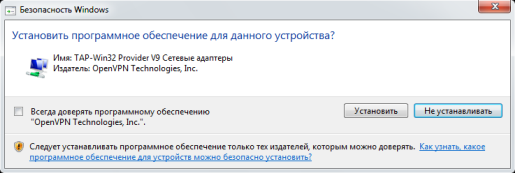
2. Установите приложение. Все опции установки оставьте по умолчанию. На этапе установки появится запрос установки TAP адаптера. Соглашайтесь.
3. Зайдите в Сетевые подключения и переименуйте созданное сетевое подключение в простое слово tap. Это переименование нам потребуется в дальнейшем. Именно к этому подключению привязан OpenVPN сервер.

4. Теперь следует создать Мост из двух имеющихся сетевых подключений.
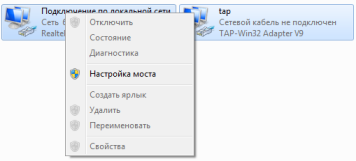
Внимание! После создания Моста подключение по локальной сети к компьютеру будет потеряно!
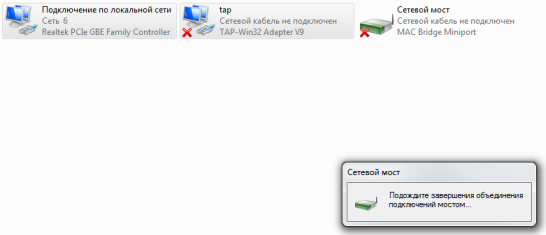
5. Подключитесь к компьютеру удобным вам способом и заново настройте IP адрес созданного моста, поскольку изначально он будет настроен на получение адреса по DHCP. Я снова установил адрес 192.168.0.2.
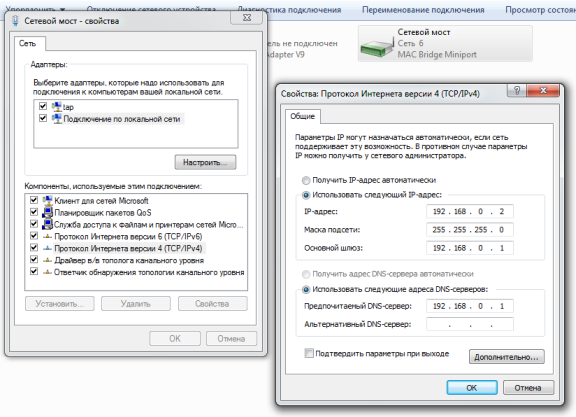
6. Перегрузите компьютер для восстановление нормальной работы сервисов 3CX Phone System.
Часть II. Создания SSL сертификатов CA, сервера и клиента (или клиентов)
Поскольку OpenVPN использует SSL сертификаты для взаимной аутентификации узлов, следует создать ряд сертификатов
- Сертификат Certificate Authority, т.е. корневой сертификат
- Сертификат Server, т.е. сертификат сервера 3CX
- Сертификат Client, т.е. сертификат клиента (IP телефона)
Внимание! Сертификаты создаются из командной строки Windows.
1. Создадим корневой сертификат Certificate Authority (CA). Перейдите в папку C:program filesOpenVPNeasy-rsa и в командной строке введите init-config.

2. Отредактируйте переменные в файле vars.bat, который тоже находится в папке C:program filesOpenVPNeasy-rsa. Для редактирования рекомендую использовать Notepad++.
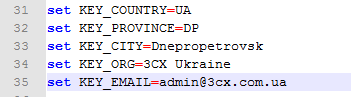
Редактировать переменные не обязательно, но желательно. Я установил значения, соответствующие нашей компании, а вы должны установить ваши. После этого сохраните файл.
3. Откройте файл openssl.cnf и закомментируйте в нем строки, связанные с пакетным режимом.
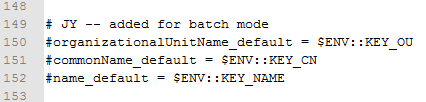
и сертификатами PKCS#11.
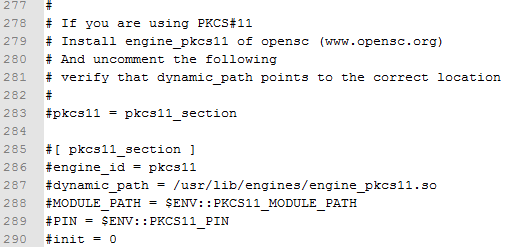
Это особенность последней версии OpenVPN (v. 2.2.0), которую я использовал.
4. В командной строке последовательно введите vars и clean-all (См. процедуру создания сертификатов в файле Readme.txt в папке C:program filesOpenVPNeasy-rsa.)

5. Введите build-ca. Эта команда создаст корневой сертификат CA в папке c:Program FilesOpenVPNeasy-rsakeys, используя значения из файла vars.bat. На все вопросы отвечайте нажатием клавиши Enter. В качестве Common Name укажите имя сервера (хоста) OpenVPN или любое подходящее название. Я указал просто server.

6. Создайте параметры Diffie-Hellman. Введите build-dh.
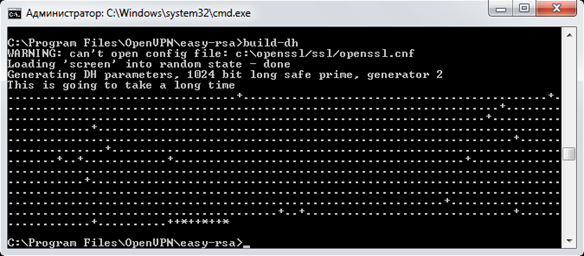
7. Создав сертификат CA, можно создать сертификат хоста, на котором установлены OpenVPN и 3CX (сертификат сервера). Этот сертификат будет подписан корневым сертификатом CA. Введите build-key-server server. На вопросы о подписании сертификата и на загрузке его в базу сертификатов ответьте y. Common Name также укажите server, для простоты решения.
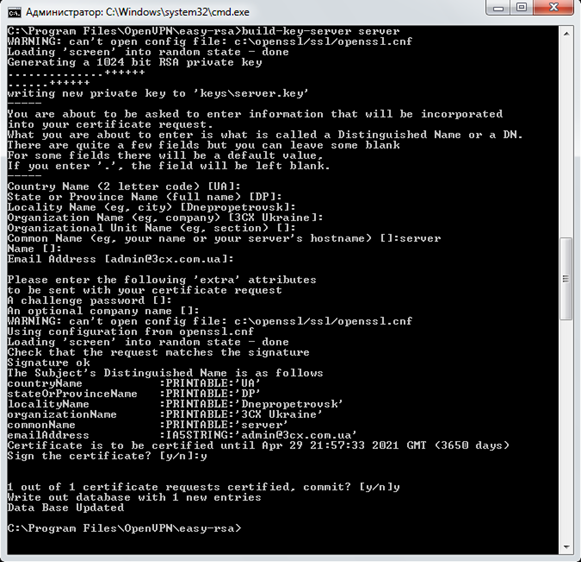
8. Теперь сгенерируйте сертификат клиента. Введите build-key client. Common Name также укажите client.

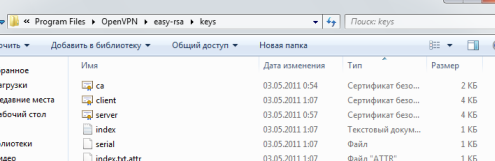
9. После этого в папке keys должны присутствовать все необходимые сертификаты.
Часть III. Установка параметров конфигурации OpenVPN сервера
1. В папке c:Program FilesOpenVPNsample-config откройте файл server.ovpn и укажите следующие параметры:
#################################################
# Sample OpenVPN 2.0 config file for #
# multi-client server. #
# #
# This file is for the server side #
# of a many-clients <-> one-server #
# OpenVPN configuration. #
# #
# OpenVPN also supports #
# single-machine <-> single-machine #
# configurations (See the Examples page #
# on the web site for more info). #
# #
# This config should work on Windows #
# or Linux/BSD systems. Remember on #
# Windows to quote pathnames and use #
# double backslashes, e.g.: #
# “C:Program FilesOpenVPNconfigfoo.key” #
# #
# Comments are preceded with ‘#’ or ‘;’ #
#################################################
# Which local IP address should OpenVPN
# listen on? (optional)
;local a.b.c.d
# Which TCP/UDP port should OpenVPN listen on?
# If you want to run multiple OpenVPN instances
# on the same machine, use a different port
# number for each one. You will need to
# open up this port on your firewall.
port 1194
# используем стандартный порт
# TCP or UDP server?
;proto tcp
proto udp
# используем протокол UDP
# “dev tun” will create a routed IP tunnel,
# “dev tap” will create an ethernet tunnel.
# Use “dev tap0” if you are ethernet bridging
# and have precreated a tap0 virtual interface
# and bridged it with your ethernet interface.
# If you want to control access policies
# over the VPN, you must create firewall
# rules for the the TUN/TAP interface.
# On non-Windows systems, you can give
# an explicit unit number, such as tun0.
# On Windows, use “dev-node” for this.
# On most systems, the VPN will not function
# unless you partially or fully disable
# the firewall for the TUN/TAP interface.
dev tap
;dev tun
# используем туннель Ethernet, т.к. мы создавали сетевой мост
# Windows needs the TAP-Win32 adapter name
# from the Network Connections panel if you
# have more than one. On XP SP2 or higher,
# you may need to selectively disable the
# Windows firewall for the TAP adapter.
# Non-Windows systems usually don’t need this.
dev-node tap
# используем имя, назначенное виртуальному OpenVPN адаптеру в I части.
# SSL/TLS root certificate (ca), certificate
# (cert), and private key (key). Each client
# and the server must have their own cert and
# key file. The server and all clients will
# use the same ca file.
#
# See the “easy-rsa” directory for a series
# of scripts for generating RSA certificates
# and private keys. Remember to use
# a unique Common Name for the server
# and each of the client certificates.
#
# Any X509 key management system can be used.
# OpenVPN can also use a PKCS #12 formatted key file
# (see “pkcs12” directive in man page).
ca “c:Program FilesOpenVPNeasy-rsakeysca.crt”
cert “c:Program FilesOpenVPNeasy-rsakeysserver.crt”
key “c:Program FilesOpenVPNeasy-rsakeysserver.key” # This file should be kept secret
# используем пути к файлам сертификатов. Обратите внимание на двойные и кавычки!
# Diffie hellman parameters.
# Generate your own with:
# openssl dhparam -out dh1024.pem 1024
# Substitute 2048 for 1024 if you are using
# 2048 bit keys.
dh “c:Program FilesOpenVPNeasy-rsakeysdh1024.pem”
# используем путь к файлу параметров DH
# Configure server mode and supply a VPN subnet
# for OpenVPN to draw client addresses from.
# The server will take 10.8.0.1 for itself,
# the rest will be made available to clients.
# Each client will be able to reach the server
# on 10.8.0.1. Comment this line out if you are
# ethernet bridging. See the man page for more info.
;server 10.8.0.0 255.255.255.0
# мы используем Ethernet мост
# Maintain a record of client <-> virtual IP address
# associations in this file. If OpenVPN goes down or
# is restarted, reconnecting clients can be assigned
# the same virtual IP address from the pool that was
# previously assigned.
ifconfig-pool-persist ipp.txt
# Configure server mode for ethernet bridging.
# You must first use your OS’s bridging capability
# to bridge the TAP interface with the ethernet
# NIC interface. Then you must manually set the
# IP/netmask on the bridge interface, here we
# assume 10.8.0.4/255.255.255.0. Finally we
# must set aside an IP range in this subnet
# (start=10.8.0.50 end=10.8.0.100) to allocate
# to connecting clients. Leave this line commented
# out unless you are ethernet bridging.
server-bridge 192.168.0.2 255.255.255.0 192.168.0.100 192.168.0.254
# адрес моего сервера OpenVPN 192.168.0.2, маска 255.255.255.0
# пул адресов, которые будут выдаваться VPN подключениям клиентов (телефонов) 192.168.0.100-192.168.0.254
# исключите эти адреса из пула адресов своего корпоративного DHCP сервера!
# Configure server mode for ethernet bridging
# using a DHCP-proxy, where clients talk
# to the OpenVPN server-side DHCP server
# to receive their IP address allocation
# and DNS server addresses. You must first use
# your OS’s bridging capability to bridge the TAP
# interface with the ethernet NIC interface.
# Note: this mode only works on clients (such as
# Windows), where the client-side TAP adapter is
# bound to a DHCP client.
;server-bridge
# Push routes to the client to allow it
# to reach other private subnets behind
# the server. Remember that these
# private subnets will also need
# to know to route the OpenVPN client
# address pool (10.8.0.0/255.255.255.0)
# back to the OpenVPN server.
;push “route 192.168.10.0 255.255.255.0”
;push “route 192.168.20.0 255.255.255.0”
# To assign specific IP addresses to specific
# clients or if a connecting client has a private
# subnet behind it that should also have VPN access,
# use the subdirectory “ccd” for client-specific
# configuration files (see man page for more info).
# EXAMPLE: Suppose the client
# having the certificate common name “Thelonious”
# also has a small subnet behind his connecting
# machine, such as 192.168.40.128/255.255.255.248.
# First, uncomment out these lines:
;client-config-dir ccd
;route 192.168.40.128 255.255.255.248
# Then create a file ccd/Thelonious with this line:
# iroute 192.168.40.128 255.255.255.248
# This will allow Thelonious’ private subnet to
# access the VPN. This example will only work
# if you are routing, not bridging, i.e. you are
# using “dev tun” and “server” directives.
# EXAMPLE: Suppose you want to give
# Thelonious a fixed VPN IP address of 10.9.0.1.
# First uncomment out these lines:
;client-config-dir ccd
;route 10.9.0.0 255.255.255.252
# Then add this line to ccd/Thelonious:
# ifconfig-push 10.9.0.1 10.9.0.2
# Suppose that you want to enable different
# firewall access policies for different groups
# of clients. There are two methods:
# (1) Run multiple OpenVPN daemons, one for each
# group, and firewall the TUN/TAP interface
# for each group/daemon appropriately.
# (2) (Advanced) Create a script to dynamically
# modify the firewall in response to access
# from different clients. See man
# page for more info on learn-address script.
;learn-address ./script
# If enabled, this directive will configure
# all clients to redirect their default
# network gateway through the VPN, causing
# all IP traffic such as web browsing and
# and DNS lookups to go through the VPN
# (The OpenVPN server machine may need to NAT
# or bridge the TUN/TAP interface to the internet
# in order for this to work properly).
;push “redirect-gateway def1 bypass-dhcp”
# Certain Windows-specific network settings
# can be pushed to clients, such as DNS
# or WINS server addresses. CAVEAT:
# http://openvpn.net/faq.html#dhcpcaveats
# The addresses below refer to the public
# DNS servers provided by opendns.com.
push “dhcp-option DNS 192.168.0.1”
;push “dhcp-option DNS 208.67.220.220”
# здесь я назначаю клиентам по DHCP адрес своего DNS сервера
# можно назначить и другие опции DHCP
# Uncomment this directive to allow different
# clients to be able to “see” each other.
# By default, clients will only see the server.
# To force clients to only see the server, you
# will also need to appropriately firewall the
# server’s TUN/TAP interface.
client-to-client
# я разрешаю клиентам (телефонам) связываться друг с другом напрямую
# Uncomment this directive if multiple clients
# might connect with the same certificate/key
# files or common names. This is recommended
# only for testing purposes. For production use,
# each client should have its own certificate/key
# pair.
#
# IF YOU HAVE NOT GENERATED INDIVIDUAL
# CERTIFICATE/KEY PAIRS FOR EACH CLIENT,
# EACH HAVING ITS OWN UNIQUE “COMMON NAME”,
# UNCOMMENT THIS LINE OUT.
duplicate-cn
# я разрешаю телефонам использовать единственный общий сертификат, который был сгенерирован в Части II
# это менее безопасно, но значительно упрощает весь процесс
# The keepalive directive causes ping-like
# messages to be sent back and forth over
# the link so that each side knows when
# the other side has gone down.
# Ping every 10 seconds, assume that remote
# peer is down if no ping received during
# a 120 second time period.
keepalive 10 120
# For extra security beyond that provided
# by SSL/TLS, create an “HMAC firewall”
# to help block DoS attacks and UDP port flooding.
#
# Generate with:
# openvpn –genkey –secret ta.key
#
# The server and each client must have
# a copy of this key.
# The second parameter should be ‘0’
# on the server and ‘1’ on the clients.
;tls-auth ta.key 0 # This file is secret
# Select a cryptographic cipher.
# This config item must be copied to
# the client config file as well.
;cipher BF-CBC # Blowfish (default)
;cipher AES-128-CBC # AES
;cipher DES-EDE3-CBC # Triple-DES
# Enable compression on the VPN link.
# If you enable it here, you must also
# enable it in the client config file.
comp-lzo
# The maximum number of concurrently connected
# clients we want to allow.
;max-clients 100
# It’s a good idea to reduce the OpenVPN
# daemon’s privileges after initialization.
#
# You can uncomment this out on
# non-Windows systems.
;user nobody
;group nobody
# The persist options will try to avoid
# accessing certain resources on restart
# that may no longer be accessible because
# of the privilege downgrade.
persist-key
persist-tun
# Output a short status file showing
# current connections, truncated
# and rewritten every minute.
status openvpn-status.log
# By default, log messages will go to the syslog (or
# on Windows, if running as a service, they will go to
# the “Program FilesOpenVPNlog” directory).
# Use log or log-append to override this default.
# “log” will truncate the log file on OpenVPN startup,
# while “log-append” will append to it. Use one
# or the other (but not both).
;log openvpn.log
;log-append openvpn.log
# Set the appropriate level of log
# file verbosity.
#
# 0 is silent, except for fatal errors
# 4 is reasonable for general usage
# 5 and 6 can help to debug connection problems
# 9 is extremely verbose
verb 3
# Silence repeating messages. At most 20
# sequential messages of the same message
# category will be output to the log.
;mute 20
2. Сохраните отредактированный файл в папке c:Program FilesOpenVPNconfig
3. Установите автоматический запуск для сервиса OpenVPN и запустите его.

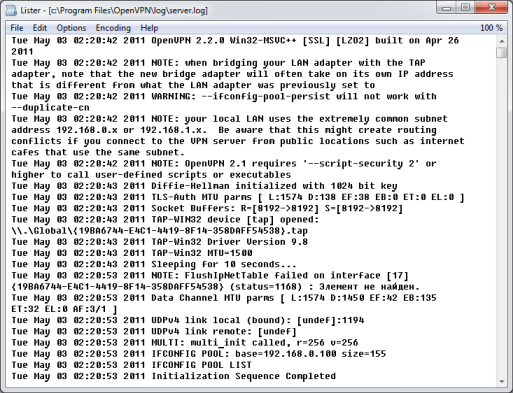
4. Убедитесь, что сервис стартовал успешно. Проверьте файл server.log в папке c:Program FilesOpenVPNlog.
Часть IV. Установка параметров конфигурации OpenVPN клиента
1. В папке c:Program FilesOpenVPNsample-config откройте файл client.ovpn и укажите следующие параметры:
##############################################
# Sample client-side OpenVPN 2.0 config file #
# for connecting to multi-client server. #
# #
# This configuration can be used by multiple #
# clients, however each client should have #
# its own cert and key files. #
# #
# On Windows, you might want to rename this #
# file so it has a .ovpn extension #
##############################################
# Specify that we are a client and that we
# will be pulling certain config file directives
# from the server.
client
# Use the same setting as you are using on
# the server.
# On most systems, the VPN will not function
# unless you partially or fully disable
# the firewall for the TUN/TAP interface.
dev tap
;dev tun
# Windows needs the TAP-Win32 adapter name
# from the Network Connections panel
# if you have more than one. On XP SP2,
# you may need to disable the firewall
# for the TAP adapter.
;dev-node MyTap
# Are we connecting to a TCP or
# UDP server? Use the same setting as
# on the server.
;proto tcp
proto udp
# The hostname/IP and port of the server.
# You can have multiple remote entries
# to load balance between the servers.
remote 3cx.dlinkddns.com 1194
;remote my-server-2 1194
# укажите внешний IP адрес или DNS имя вашего сервера OpenVPN. Я указал DDNS имя нашего офисного сервера.
float
# укажите параметр float, если ваш роутер меняет порт исходящих пакетов.
# в моем роутере Zyxel наблюдалась данная особенность, что влекло к проблемам взаимной аутентификации. См. документацию к OpenVPN.
# Choose a random host from the remote
# list for load-balancing. Otherwise
# try hosts in the order specified.
;remote-random
# Keep trying indefinitely to resolve the
# host name of the OpenVPN server. Very useful
# on machines which are not permanently connected
# to the internet such as laptops.
resolv-retry infinite
# Most clients don’t need to bind to
# a specific local port number.
nobind
# Downgrade privileges after initialization (non-Windows only)
;user nobody
;group nobody
# Try to preserve some state across restarts.
persist-key
persist-tun
# If you are connecting through an
# HTTP proxy to reach the actual OpenVPN
# server, put the proxy server/IP and
# port number here. See the man page
# if your proxy server requires
# authentication.
;http-proxy-retry # retry on connection failures
;http-proxy [proxy server] [proxy port #]
# Wireless networks often produce a lot
# of duplicate packets. Set this flag
# to silence duplicate packet warnings.
;mute-replay-warnings
# SSL/TLS parms.
# See the server config file for more
# description. It’s best to use
# a separate .crt/.key file pair
# for each client. A single ca
# file can be used for all clients.
ca “c:Program FilesOpenVPNeasy-rsakeysca.crt”
cert “c:Program FilesOpenVPNeasy-rsakeysclient.crt”
key “c:Program FilesOpenVPNeasy-rsakeysclient.key”
# используем пути к файлам сертификатов. Обратите внимание на двойные и кавычки!
# в данном случае я установлю клиентскую часть OpenVPN на другой компьютер для тестирования связи
# при использовании не компьютера, а IP телефона, эти пути будут отличаться!
# пути для каждой марки телефона отличаются, см. пояснения далее.
# Verify server certificate by checking
# that the certicate has the nsCertType
# field set to “server”. This is an
# important precaution to protect against
# a potential attack discussed here:
# http://openvpn.net/howto.html#mitm
#
# To use this feature, you will need to generate
# your server certificates with the nsCertType
# field set to “server”. The build-key-server
# script in the easy-rsa folder will do this.
ns-cert-type server
# If a tls-auth key is used on the server
# then every client must also have the key.
;tls-auth ta.key 1
# Select a cryptographic cipher.
# If the cipher option is used on the server
# then you must also specify it here.
;cipher x
# Enable compression on the VPN link.
# Don’t enable this unless it is also
# enabled in the server config file.
comp-lzo
# Set log file verbosity.
verb 3
# Silence repeating messages
;mute 20
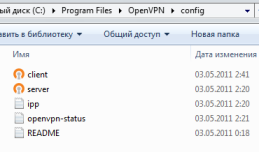
2. Сохраните файл в папке c:Program FilesOpenVPNconfig. Папка должна иметь примерно такой вид.
Часть V. Тестирование VPN подключения
1. Установите на другой компьютер (VPN клиент) пакет OpenVPN отсюда.
2. На Интернет-роутере опубликуйте порт UDP 1194. Я опубликовал этот порт для внутреннего IP адреса 192.168.0.2, на котором у меня установлены серверы 3CX и OpenVPN. Пример для Zyxel.

3. С серверного компьютера скопируйте в идентичные папки клиентского компьютера следующие файлы:
c:Program FilesOpenVPNeasy-rsakeysclient.crt
c:Program FilesOpenVPNeasy-rsakeysclient.key
c:Program FilesOpenVPNeasy-rsakeysca.crt
c:Program FilesOpenVPNconfigclient.ovpn
4. Запустите соединение, нажав на иконку OpenVPN GUI.

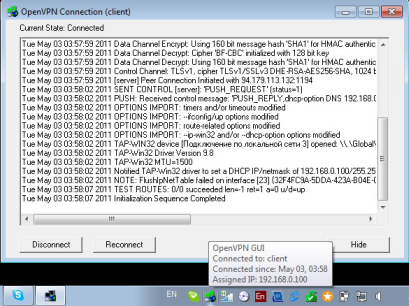
5. Если все вышеуказанные пункты выполнены надлежащим образом, VPN соединение должно установиться, и ему должен быть присвоен IP адрес из пула, указанного в конфигурации сервера в Части III.
Часть VI. Модификация конфигурации клиента для использования в IP телефоне и подготовка TAR архива (tarball) для телефона
После того, как мы успешно протестировали VPN соединение на двух компьютерах, можно перенести эту конфигурацию (речь идет только о конфигурации клиента) в IP телефон с поддержкой OpenVPN. Для этого нужно:
- узнать из документации к телефону пути (в телефоне!), по которым должны быть найдены файлы конфигурации
- модифицировать файл конфигурации клиента
- заархивировать файл конфигурации клиента и сертификаты клиента в архив нужного формата
- загрузить архив в телефон
- протестировать подключение телефона по OpenVPN к серверу 3CX
Итак, приступим.
1. Для телефонов Yealink загрузите пример конфигурации клиента OpenVPN.
2. Открыв файл, я увидел следующие особенности конфигурации OpenVPN для Yealink
- архив конфигурации имеет имя client.tar
- файл конфигурации OpenVPN клиента называется vpn.cnf (а для компьютера этот файл называется client.ovpn)
- сертификаты лежат в папке keys
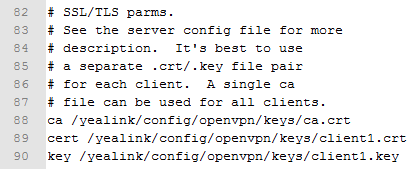
- открыв файл vpn.cnf, я увидел, что пути по которым телефон ищет файлы конфигурации, следующие
ca /yealink/config/openvpn/keys/ca.crt
cert /yealink/config/openvpn/keys/client1.crt
key /yealink/config/openvpn/keys/client1.key
3. Вооружившись этой информацией, можно подготовить файл конфигурации телефона. Для этого откройте файл client.ovpn, который был подготовлен в Части IV и измените строки
ca “c:Program FilesOpenVPNeasy-rsakeysca.crt”
cert “c:Program FilesOpenVPNeasy-rsakeysclient.crt”
key “c:Program FilesOpenVPNeasy-rsakeysclient.key”
на строки
ca /yealink/config/openvpn/keys/ca.crt
cert /yealink/config/openvpn/keys/client.crt
key /yealink/config/openvpn/keys/client.key
4. Сохраните файл под именем vpn.cnf
5. Скопируйте с клиентского компьютера папку c:Program FilesOpenVPNeasy-rsakeys.
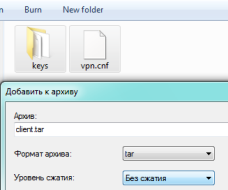
6. Папку keys и файл vpn.cnf добавьте в архив client.tar. Для этого я использовал архиватор 7-Zip.
Часть VII. Загрузка TAR архива (tarball) в IP телефон и включение VPN туннеля
1. Загрузите в телефон последнюю версию прошивки.
2. Убедитесь, что ваша модель телефона поддерживает OpenVPN. У Yealink это модели SIP-T28P и SIP-T26P. Версия прошивки – не ниже 2.60.14.5.
3. Зайдите в web интерфейс телефона в раздел Сеть > Дополнительно.
4. В разделе VPN нажмите укажите расположение файла client.tar, созданного в Части VI, и нажмите Импорт.

5. После импортирования конфигурации, установите VPN Использование – Включено и нажмите Подтвердить.
Внимание! Включить VPN туннель можно и через экранное меню телефона! При этом предварительно следует загрузить файл конфигурации client.tar.
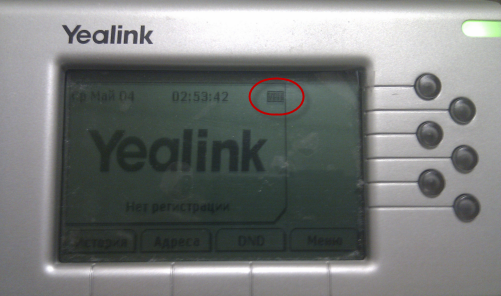
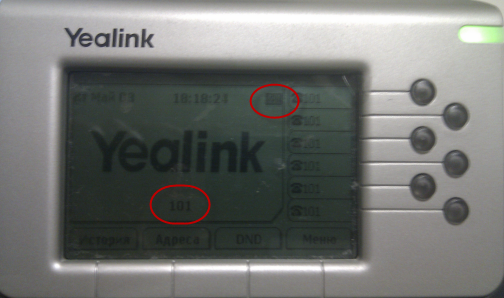
6. Если все прошло успешно, на экране телефона загорится индикатор VPN.
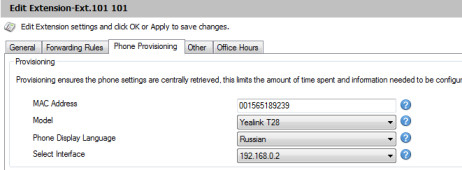
7. Если вы хотите использовать автонастройку телефона (Autoprovisioning), сперва укажите MAC адрес телефона в настройках Extension 3CX.
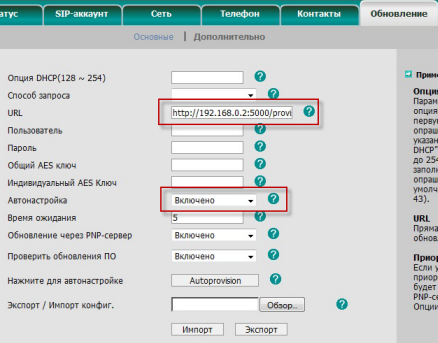
8. Затем в интерфейсе телефона, в разделе Обновление > Дополнительно,укажите строку автонастройки http://192.168.0.2:5000/provisioning (для 3CX Phone System v.10), установите Автонастройка – Включено и нажмите Подтвердить.
9. Телефон перегрузится, затем начнется процесс автонастройки. В конечном счете экран телефона должен выглядеть примерно так
10. В консоли 3CX телефон должен отображаться как зарегистрированный.

Часть VIII. Заключение. Обнаруженные проблемы.
Если посмотреть на последний рисунок (Часть VII, пункт 10), можно заметить странную вещь – телефон зарегистрировался не с адресом, который ему должен был выдать OpenVPN сервер (например, 192.168.0.100), но с адресом той сети, в которой телефон находится с данный момент (в моем случае – 192.168.100.100). Это значит, что телефон зарегистрировал на сервере 3CX свой WAN интерфейс, но не виртуальный VPN интерфейс, как следовало бы ожидать. Практически это означает, что телефон зарегистрировался неправильно и вызовы принимать не сможет!
После обращения в поддержку Yealink, я выяснил, что это все-таки проблема в прошивке телефона, которая должна быть устранена. Поэтому, к сожалению, данная обширная статья еще не окончена и продолжение следует.
В заключение скажу, что аппараты Yealink – не единственные, которые поддерживают подключение по OpenVPN. Его также поддерживают телефоны SNOM и некоторые другие.






 Copyright © 2025